Showing posts with label MS_Word. Show all posts

Friday, 31 October 2014

Lesson no 30 (Last) = How To Dave Your Document As A Web Page In Word?

How To Dave Your Document As A Web Page In Word?

Saving Microsoft Word documents as web pages used to be all the rage in the 1990s. However, unless you really must do this, this practice is to be avoided. Web pages are created using HTML (Hyper Text Mark Up Language) and you are better off using a tool designed to create HTML. I code HTML using a simple text editor, whereas other people use dedicated coding tools like Dreamweaver.

Microsoft Word Produces Code Bloat

One of the problems of using Microsoft Word to create a web page from your document is that lots of unnecessary code gets generated along with the HTML markup. Much of this code is informational only, as it is commented out. With Word being a Microsoft product, you can bet that the code generated is geared to the non-standard browser that is Internet Explorer, too.
Styles are embedded in the content (bad!), and they are coded clumsily. The "code bloat" is so bad that I took a very simple Word document that was already an unecessarily large 27KB and saved it as a web page. The new HTML file was a staggering 62KB! Don't do it kids.
However, if you really must use Word to create a web page from your document, here is how to do it: click the File tab > Save As, and change the Save as type box to be Web Page (*.htm; *.html). The .htm and .html file extensions indicate HTML markup.
You'll then notice a HTML version of your document in Windows Explorer. Usually, you can see what this web page looks like by double clicking on it, and it will open in your default internet browser.

Lesson no 29 = How To Dave Your Document In Word?

How To Dave Your Document In Word?

It's a good idea to save your document as soon as you create it in Microsoft Word and then keep saving it periodically as you make changes. It's no fun to make drastic changes to a document, have your PC crash and then lose all your hard work. Fortunately, saving documents is easy.
As soon as you create a new document, you can save it by pressing ctrl-s. If you haven't yet saved the document (and you won't have if you're just in the process of creating it), the Save As dialogue box will open. Give the document a name in the File name box (the text here is highlighted straight away, so as soon as you start typing, it will overwrite the current default name), and navigate to a location on your hard drive where you'd like to save the document. Click Save.
Saving Documents In Microsoft Word
Once you've done the initial save, all incremental saves can be performed in a split second by pressing ctrl-s. You won't be bothered again by the Save As dialogue box, unless you choose to rename your document by clicking the File tab > Save As.

Autosaving In Word

In addition to the manual saving you can do in Word, there is also the Autosave function that will prevent you from losing changes. This feature is a godsend for those people who save their documents infrequently. The autosave function instructs Word to save your document after a certain amount of time has elapsed. You can configure the autosave settings by clicking the File tab > Word > Options > Save.

Lesson no 28 = How To Print In Word?

How To Print a document In Ms Word?

With the introduction of Backstage View in Microsoft Word 2010, the process of printing out documents now appears very much different. To see the printing options available, click the File tab > Print. The following panel will be displayed (click on the image to enlarge it).
Printing In Microsoft Word
Using this panel you can control:
  • Copies - how many copies of your document will get printed.
  • Printer - your default printer will appear here, but you can select others that are on your network.
  • What To Print - initially set to Print All Pages but you can change this setting to print a selection of pages, print the current page only or print a custom range of pages.
  • Print One Sided - this is the default, but you can change that to print on both sides of the page.
  • Collated - this setting tells Word how to collate multiple prints that you request. Do you want all page 1s printing first, followed by all page 2s etc. Or do you want an entire copy of the document printing before moving onto the next copy?
  • Portrait Orientation - the default is portrait orientation, but you can change this to landscape orientation.
  • Letter - the letter setting allows you to select from a set of commonly used letter sizes, for example, legal, executive, A3 etc.
  • Margins - you can alter the size of the margins that are used on your document here.
  • 1 Page Per Sheet - this is the initial default, but you can change it to be 2, 4, 6, 8 or 16.

Print Preview In Word

The old way of presenting a print preview of your document has become obsolete. Now, the print preview appears to the right of the print settings. You can page through your document by clicking on the page scroller at the bottom (the left and right arrows), you can jump to a particular page by typing it into the input box and pressing Enter, and you can also use the page up and page down keys on your keyboard to navigate the document.

Changing Printer Properties In Word

Sprinkled throughout the Microsoft Word 2010 user interface are links that perform commands. It's odd to see links instead of buttons on a modern interface, but I'm sure Microsoft know what they're doing! On the print panel, there are links to change the Printer Properties (at the top) and also the page setup (at the bottom).

Lesson no 27 = How To Shade Tables In Word?

How To Shade Tables In Word?

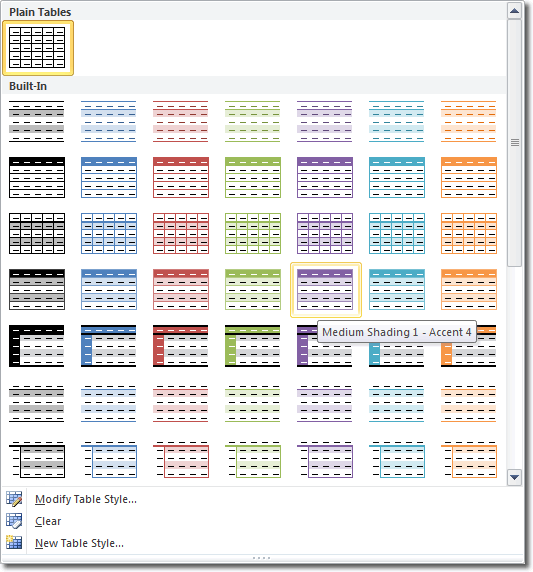
Microsoft Word 2010 removes much of the need to spend time getting the shading right on tables in your documents. The table styles that come with Word provide a rich selection of different styles you can apply to your tables. Live Previews let you see what those styles look like without having to apply them. To apply a table style, place the cursor in any cell of your table and then click Table Tools > Design > Table Styles > More Button (bottom right of the Table Styles group). The following panel appears, displaying thumbnail images of the table styles available for us to choose.
Table Styles In Microsoft Word
These table styles offer combinations of borders and shading, some emphasizing header rows and some alternating row colours.
You can even format your table the way you want it to appear and then save it as a new table style. To do this, click Table Tools > Design > Table Styles > More Button > New Table Style, and the Create New Style from Formatting window will open.
Save A New Table Style In Microsoft Word
Name the style and ensure that Style type is set to "table". Make sure the other selections are correct (the default settings are usually appropriate) and then click OK.
The shading described above is applied using ready made table styles. However, you can apply your own table shading without using table styles. Select a cell or range of cells and then click Table Tools > Design > Table Styles > Shading. Select a colour from the panel that opens and that colour will be applied as shading.

Lesson no 26 = How To Move Add A Border To A Table In Word?

How To Move Add A Border To A Table In Word?

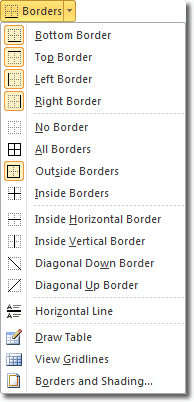
Microsoft Word 2010 gives you a lot of flexibility in specifying borders for your tables. To have a look at the border options, first of all select your table by right clicking anywhere in it and then choosing Select > Table. In the Table Tools contextual tab, click Design > Table Styles > Borders (the down arrow to the right of the Borders button).
Adding A Border To A Table In Microsoft Word
The options here give you the ability to select all combinations of borders for the table: left, right, top and bottom, outside, inside etc. These options control which borders are displayed. To change the properties of the borders, i.e. the way they look, you'll need to use the Borders and Shading option at the bottom of the Borders menu. This option allows you to change the following properties of a border:
  • Style
  • Colour
  • Width
Often, you'll want to use a table to align objects on your page. In this case, the reader doesn't need to see the borders at all. To make the borders invisible, you can select the table and then click Table Tools > Design > Table Styles > Borders > No Border.

Lesson no 25 = How To Move A Table In Word?

How To Move A Table In Word

To move a table around your Microsoft Word document, all you have to do is drag and drop it. When you hover your mouse over any part of the table, a four way handle inside a small box is displayed at the top left corner of the table.
Move a table in Microsoft Word
You can click and drag on this handle to move the table around your document. The only problem with this method is that it's sometimes hard to drop the table precisely where you need it. Many people use a different and more accurate method of moving their tables. Basically, they just cut their table and then paste it where in the document they need it.
To do this, first of all you'll need to select your table. Right click anywhere in the table > Select > Table. All the cells in the table will be highlighted. Press ctrl-x on the keyboard to "cut" the table and then place your cursor where you want the table to go. Press ctrl-v to paste the table. Sometimes you'll inadvertently copy some leading or trailing characters when you cut your table, but you can easily get rid of them after you've pasted it.

Lesson no 24 = How To Delete A Table In Word?

How To Delete A Table In Word

There is a very quick way to delete a table in Microsoft Word 2010, that doesn't even involve selecting the table first. Place the cursor in a cell in the table and notice that the Table Tools contextual tab appears in the ribbon. Click Layout > Rows & Columns > Delete > Delete Table.
Delete A Table In Microsoft Word
Doing this removes the table from your document.
Another way to delete a table is to first of all select it and then delete it. There are two ways of selecting a table: using commands in the ribbon and using the right click menu. Let's look at using the ribbon first. Place the cursor into any cell in the table and notice that the Table Tools contextual tab appears in the ribbon. Click Layout > Table > Select > Select Table.
Select A Table In Microsoft Word
When you select a whole table, all the cells within are highlighted. Pressing the backspace key now will delete the table, whereas pressing the delete key will simply delete all the contents of the table.
The other way of selecting a table is to right click anywhere in the table > Select > Table, and then proceed as above.
Select A Table In Microsoft Word

Lesson no 23 = How To Insert A Table In Word?

Insert A Table In Word

In addition to using tables to present tabular data in a Microsoft Word document, you might also use a table to align blocks of text or other objects. To insert a table, click Insert > Tables > Table.
Insert a table in Microsoft Word
The panel that is displayed gives a representation of the tables that you could insert. In the image, I've hovered over the square that lies in the third column and fourth row. Clicking on that square, therefore, will insert a table with three columns and four rows. Indeed, as you hover over different squares, Word tells you at the top of the panel how many rows and columns your table will have. When you find a square that corresponds to the number of rows and columns you need, click on it and the table will be inserted into your document. The table is placed where your cursor is currently positioned.
Another way of adding a table to your Word document is to use the Insert Table option on the above panel.
Insert table window
In the Insert Table window that appears, you can specify the number of rows and columns you want your table to have, and you can also specify:
  • Fixed Column Width - if you leave this at auto, Word will decide how wide your columns will be.
  • AutoFit to Contents - the columns will adjust to fit the contents that are inserted into table cells in a column.
  • AutoFit to Window - use this if a table that you have pasted into your document from another application (for example Excel) exceeds the documents margins.
  • Remember dimensions for new tables - checking this box defaults the settings you apply here to all new tables you insert.

Lesson no 22 = How To Format Text In Microsoft Word?

How To Format Text In Microsoft Word

Formatting text in Microsoft Word involves tasks like bolding the text, italicising it, and changing the font and size. The commands to perform all of these formatting tasks are found on the Home tab in the Font group. Select your text and then click on the required formatting button to see the effects.
Formatting Text In Word
Alternatively, you can use the keyboard shortcuts for those commands. Here are the shortcuts for some of the more commonly used formatting commands:
  • Bold: ctrl-b
  • Italic: ctrl-i
  • Underline: ctrl-u
You can also set the formatting before you type by clicking the appropriate button or using the shortcut, and then anything you subsequently type will be formatted. To unset the formatting, you click the same command button or use the same shortcut. So you can see that these commands act like toggles.

The Mini Toolbar In Word

You may notice that as soon as you select a block of text, a mini toolbar appears from nowhere. This toolbar displays the more popular formatting commands that you are most likely to use, to save you time.
Mini Toolbar For Formatting Text In Word

Lesson no 21 = How to use Bullets In Word?

You can add bullets in Microsoft Word to differentiate between the different points you want to make. The bulleted points form a list. Word allows you to create both bulleted lists and numbered lists.
To start a bulleted list, click on the bullets command button in the ribbon and then start typing.
Bullets in Word
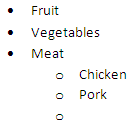
Whenever you press Enter, a new bullet point will be created. If you press Enter twice, Word will realise that you have finished the list and will stop creating new bullets. If you want to create a sub list, you can press the tab key. The sub list will be indented, as shown below.
Sub Lists in Word
As with the first level of the list, pressing Enter twice ends the current list and will return to the previous list.
If you have already typed out some text that could be used as a bulleted list, you can select the text and then click the bullet icon and bullets will be applied.

Changing The Style Of A Bulleted List

If after creating a bulleted list you decide to change the type of bullets used, first of all select the list and then click the down arrow to the right of the bullet command. Here, you can select from all the different bullet types available.
Bullet Style in Word

Creating A Numbered List

Creating a numbered list in Word is very similar to creating a bulleted list, except you click on the numbered list command instead.
Numbered lists in Word
As you've probably guessed, one of the differences between bulleted lists and numbered lists is that numbered lists are sequential. That is, position in the list matters. If you want to, you can change the number that the list starts at. To do that, select the numbered list and click the down arrow to the right of the numbered list button and then select Set Numbering Value.
Set Numbering Value in Word
In the Set Numbering Value dialogue box, amend the Set Value To to be the starting number of the list.

Lesson no 20 = How To Use The Thesaurus In Word?

How To Use The Thesaurus In Word?

In addition to the spell checking and grammar checking tools that Microsoft Word offers, there is also the Word thesaurus we can take advantage of to improve our documents. Using the thesaurus, you can find synonyms (different words with the same meaning) and antonyms (words with the opposite meaning).
In Microsoft Office Word you can look up a word quickly if you right-click anywhere in your document, and then click Synonym on the shortcut menu.
Let's have a look at the thesaurus in Word now: click Review > Proofing > Thesaurus. The Research pane opens on the right hand side of the workspace.
Thesaurus Research Pane In Microsoft Word
Type in a word into the Search for box and press Enter. Alternatively, press ALT on the keyboard and click a word in your document. Word displays a list of alternatives that you can use. If you find a word in the list that you'd like to use, click on the down arrow that appears to the right and select Insert.
Insert Synonyms In Microsoft Word
If you had selected a word in your document, the word you select in the Research pane will replace it. If not, the word will simply be inserted into your document where the cursor was positioned.
If you want to continue your research and look up further synonyms for another word in the list, click on it. That word will be placed in the Search for box and its synonyms will be displayed in the list.

Lesson no 19 = How To Check Spelling In Microsoft Word?

Spell Check In Microsoft Word

When you create a Microsoft Word document for other people to read, it's important to spot and correct any spelling mistakes or grammatical errors you've made. You can let Word's spelling and grammar checkers suggest corrections automatically while you work, or you can check the spelling and grammar in the file all at once when you've finished writing your document. Microsoft Word 2010 comes with a dictionary of standard grammar and spellings, but they are not comprehensive.

Check Spelling And Grammar All At Once

Let's look at how to check spelling and grammar in Word, all at once. It's a good idea to proofread your document once you've completed it, and using the Word spell checker should be part of this process. When Word highlights mistakes you've made, it offers suggestions for replacing the word, and there are several courses of action you can take:
  • Use one of the suggested words to fix the error - select the word in the Suggestions list, and then click Change.
  • Change the incorrect word manually - select the Not in Dictionary check box, change the word and then click Change.
  • The highlighted word is actually a real word - add this to Word's dictionary by clicking Add to Dictionary.
  • Ignore the incorrect word for now - click Ignore Once.
  • Ignore all occurrences of the word - click Ignore All.
  • Get Word to autocorrect the word - select the correct word in the Suggestions list, and then click AutoCorrect.
To spell check your entire document, click Review > Proofing > Spelling & Grammar. If the program finds spelling mistakes, a dialog box or task pane appears with the first misspelled word found by the spelling checker.
Spelling And Grammar Checking In Word
After you've fixed a misspelled word using the above steps, Word moves onto the next one misspelled. Once the spelling mistakes are complete Word moves onto grammar checking. You can resolve grammar issues in the same way.

Check Spelling And Grammar Automatically

Microsoft Word can flag misspelled words while you type so that you can easily locate them, as in the following example:
When you right click on the misspelled word, Word offers you suggestions for corrections.
Spellimg Mistakes In Word
As you can see, the right click menu offers you other options, such as ignoring the word and adding it to the dictionary.
Word highlights misspelled words by underlining them with a red squiggle, and grammatical errors by underlining them with a blue squiggle.

Turning Off Automatic Spelling And Grammar Checking

By default, automatic spelling and grammar checking is turned on. However, if you want to turn it off, click the File tab > Help > Options > Proofing. You can hide spelling and grammar errors using the two check boxes at the bottom of the window, and you can apply these changes to either the current document, or all new ones using the drop down list.

Lesson no 18 = How to Add Borders To Picture In Word?

Adding Borders To Images In Word

In previous versions of Microsoft Word, you had to right click on the picture and choose the formatting options to add a border. In Word 2010, however, the process is quicker and much more simplified. To add a border to your picture, select it and then click Pictures Tools > Picture Styles > Picture Border. Select a colour from the swatches displayed and the border will be applied to the picture.
Picture Borders In Microsoft Word
To remove a border previously added to a picture, click Pictures Tools > Picture Styles > Picture Border > No Outline.
You have the option of specifying different attributes for the picture border using the panel shown above, as follows:
  • More Outline Colours - this option gives you the ability to use different colours than the theme ones shown in the initial panel
  • Weight - use this to increase the border width
  • Dashes - use this option to apply different styles of dots and dashes

Lesson no 17 = How To Add Shadows To Objects In Microsoft Word?

How To Add Shadows To Objects In Microsoft Word?

Adding shadows to the objects you insert into your Word document can give those objects a 3D look. You can add shadows to virtually any object you can insert: pictures, Clip Art, shapes, Smart Art and charts. Many objects will display the Picture Tools contextual tab when selected, whilst others will display their own contextual tab. Whichever tab is displayed, there are options for you to add shadows to the object you inserted.
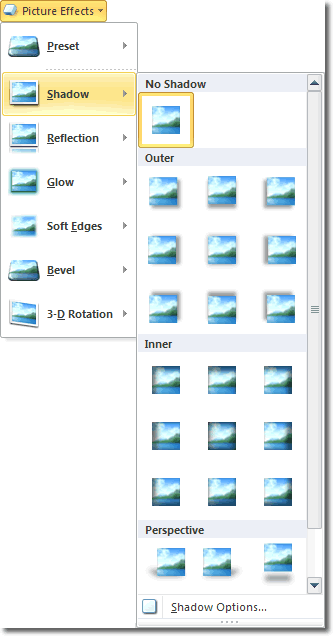
Let's keep things simple and add a picture to a Word document and then add a shadow to it. Click Insert > Picture, and navigate to a picture on your hard drive. Select it and click Insert. You should see the Picture Tools tab displayed in the ribbon. You'll find several styles in the Picture Styles group that use shadows. You can also use the Picture Effects button to apply even more styles. When we click it, we see the following panel:
Shadow Effects In Word
A live preview for each shadow effect is available, which means that you can hover over each thumbnail to see a temporary preview of that effect applied. Click on the one you like. To remove a shadow previously applied, select the picture and click Picture Effects > Shadow > No Shadow.The effect is removed.

Lesson no 16 = Using WordArt In Your Microsoft Word Documents

Using WordArt In Your Microsoft Word Documents?


If you want to spice up your Word document, why not insert some WordArt? WordArt is decorative text that you can add to a document quickly and easily. You can make changes to WordArt, such as changing the font size and text colour, by using the drawing tools available in the WordArt tab.
To insert some WordArt, click Insert > Text > WordArt, and the following panel will open.
Insert WordArt
When you select the style of WordArt you want to insert, the Edit WordArt window opens.
Edit WordArt
Here, you can select the font you want to use for your WordArt, along with the font size. You can also bold and italicise your text. Use the big text box to type in the text you want displayed. When finished, click OK. The WordArt is inserted into your document, and while it is selected, the WordArt contextual tab displays in the ribbon. You can use the commands here to format your WordArt.
You'll notice a bounding box around your text: you can use the drag handles at the corners and along the edges to resize your text.
If you have previously inserted some WordArt and now want to change the text displayed, select the WordArt and then on the Format tab click Text > Edit Text. The Edit WordArt Text window that we saw earlier opens. Again, we can change the text properties (font, size, etc) and what the text says.

Lesson no 15 = How To Add A Text Box To Your Word Document?

How To Add A Text Box To Your Word Document?

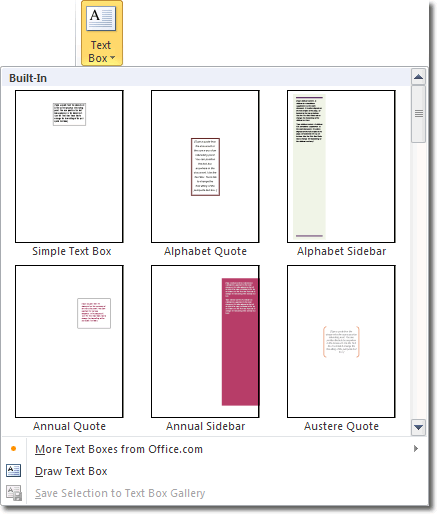
A text box is an object that you can add to your Word document to emphasize or set off your text. To add a text box, click Insert > Text > Text Box. A panel opens that displays a selection of text box types for you to choose from.
Add A Text Box In Microsoft Word
Click on the text box type you'd like to insert. The text box is added to the page and it contains placeholder text for you to replace with your own. Because all the text is selected, as soon as you start typing, what you type will replace the placeholder text. Here is a simple text box that I inserted:
Adding A Simple Text Box In Microsoft Word

Adjusting The Text Box

While the text box is selected, you'll notice that there are drag handles at each corner of the box and along each edge. You can drag those to resize the box. As you resize the box, the text adjusts to fit the new dimensions. When you hover the mouse over the boundaries of the box, the cursor changes to a double arrowed shape - when it does this, you are able to click and drag to move the box around your document.
You can also rotate the text box by clicking and dragging on the green rotation handle at the top. Dragging left rotates the box in an anticlockwise direction whereas dragging right rotates clockwise.

Styling Your Text Box

When text boxes are selected, the Drawing Tools contextual tab appears in the ribbon. You can use the commands here to style your text box. Rather than go through all the different commands you can use, let's look at an example and style a simple text box.
Click on the Format tab within the Drawing Tools tab and then click the More button (bottom right) in the Shape Styles group. This is the style I'm going to use:
Shape Styles For Text Boxes In Microsoft Word
Now let's add a reflection. With the text box selected, click Shape Effects button in the Shape Styles group. Hover over the Reflection category and select one of the reflections.
Text Box Shape Effects In Microsoft Word
This is the finished result!
A Styled Text Box In Microsoft Word

Lesson no 14 = How To Draw Shapes In Microsoft Word?

Shapes are good for helping you illustrate the points you want to make to your readers and Microsoft Word 2010 now has a huge selection of shapes that you can draw in your documents. After you add one or more shapes, you can add text, bullets, numbering, and Quick Styles to them.
To insert a shape, click Insert > Illustrations > Shapes. The panel that opens shows the shapes you can insert.
Drawing Shapes In Microsoft Word
The shapes are organised in the following categories:
  • Recently Used Shapes - the last few shapes you inserted into a document.
  • Lines - you can insert straight lines, straight lines with corners, curved lines, lines with arrows on and closed polygons. Learn how to add lines with arrows in Word.
  • Rectangles
  • Basic Shapes - triangles, polygons and an assortment of other common "basic" shapes.
  • Block Arrows - you can add block arrows that face all the different directions and you can also add some interesting variations on the block arrow.
  • Equation Shapes - basic symbols used in equations, such as '+', '-', 'x' etc.
  • Flowchart - if you need to create a flowchart, Microsoft Word 2010 has all the flowchart shapes covered.
  • Stars and Banners
  • Callouts - callouts are lines that end in a box for you to type in. They are useful for explaining a certain element on the page.

Adjusting A Shape

Once you've inserted a shape into your document, you'll find that it is easy to resize it. Click the shape to select it and you should see resize handles appear at each corner and along each edge of the shape's bounding box. Click and drag on any of those handles to resize. Note that you can keep the shape's proportions by dragging a corner handle. If you want to "squash" the shape, drag one of the handles along an edge.
Resizing A Shape In Microsoft Word
Additionally, you can change a shape's orientation by rotating it. With the shape still selected, you should see a green rotation handle at the top and set away from the other handles. If you hover the mouse over that handle, the cursor will change to a rotation symbol. Click and drag to the left or right to rotate the shape anticlockwise or clockwise respectively.
To delete a shape from your document, select it and press the delete key on your keyboard, or the backspace key.

Lesson no 13 = Creating Lines And Arrows In Word


Creating Lines And Arrows In Word

Microsoft Word gives you the ability to create many shapes in your documents, and some of the more useful ones are lines and arrows. You can use these to good effect to help illustrate your points. For example, you might like to add some descriptive text for an image and then "point" to the image.
To create a line, click Insert > Shapes. As you can see, there is a huge selection of shapes we can draw.
Lines And Arrows In Word
The options we need are positioned close to the top of the panel in the Lines category. They allow us to draw straight lines, stright lines with corners, curved lines and closed polygons. We can also draw lines that have arrows at one or both ends, too.
To draw a line, either with or without and arrow, click on a tool and then click and drag in your document. Clicking once for the start of the line and again for the end has the same effect.

Adjusting The Line

You can select a line by clicking on it, and once selected you can move it in any direction by using the arrow keys on your keyboard. To delet the line, just press the delete key or backspace. Suppose you want to resize the line though, either to lengthen or shorten it. You can do that too. First of all select the line and then hover the mouse over one end. When the cursor changes to a "plus sign" (without arrows on it) you can click and drag to move that end.
When the line is selected, you might also notice that the Drawing Tools contextual tab appears in the ribbon. We won't cover what effects you can apply to the line in this tutorial, but there are plenty worth investigating by way of some trial and error.

Lesson no 12 = How to Aligning Text And Objects In Microsoft Word?

Aligning Text And Objects In Microsoft Word

The default alignment for text in a Word document is for it to be left justified. However, you can change that. The alignment buttons on the Home tab (in the Paragraph group) allow us to justify, or align, not only text but other objects as well.
Aligning Text In Word
The images on each button give you a good idea of what each alignment option does. When aligning text in Word, all you have to do is place the cursor in a particular paragraph and click one of the buttons. The alignment affects only that paragraph and no other. Of course, you can select multiple paragraphs and then click one of the alignment buttons and all selected text will be aligned.
Additionally, you can select objects as well as text and align those too using the same buttons. If you want to align an image in your document, you'll find that the Position command (Picture Tools > Format > Arrange) is more versatile, though.
Image Alignment In Word
The Position command is available for all objects you can insert into your document. It gives you the ability to position an object to the left, middle or right horizontally and top, middle or bottom vertically.

Lesson no 11 = How To Wrap Text In Microsoft Word?

How To Wrap Text In Microsoft Word

By default, when you insert an image into your Microsoft Word document, the image is inline. However, this arrangement doesn't look as good as it could. Let's change the text wrapping. The text wrapping properties are set against the image, so select the image and in the Picture Tools contextual tab, click the Format tab > Arrange >
Wrap Text In Word
The options for text wrapping are:
  • In line with text - the default setting. The image is part of the line of text on which it is inserted.
  • Square - the text flows around the image
  • Tight - the margins between the image and text are smaller
  • Through
  • Top and bottom - text appears at the top and bottom of the image
  • Behind text - the image appears behind the text, a bit like a background image
  • In front of text - the reverse of the above. The image actually obscures the text that it is in front of.
By far the most common way of wrapping text is to have the image embedded into the content like this:
Embed Image In Text